Keyboard
GDevelop gives access to all inputs made on the keyboard. This includes conditions to check if a key was pressed or released.
Warning
Keyboard conditions only work with a physical keyboard. They do not detect input from on-screen (virtual) keyboards on touch devices. For games targeting mobile or touchscreen devices, use mouse and touch conditions instead, or the Text Input object for text fields.
Key pressed vs. Key just pressed
There are two conditions that look similar but behave differently:
- Key pressed stays true as long as the key is held down. Use it for continuous actions like moving a character left while the left arrow is held.
- Key just pressed is only true on the frame when the key starts being pressed. Use it for one-shot actions like jumping, firing a single shot, or toggling a menu — even if the player keeps holding the key, the condition only triggers once.
To check the key, enter its name as a text expression (between quotes). For example, type "Left" to check the left arrow key, "Space" for the space bar, or "a" for the letter A.
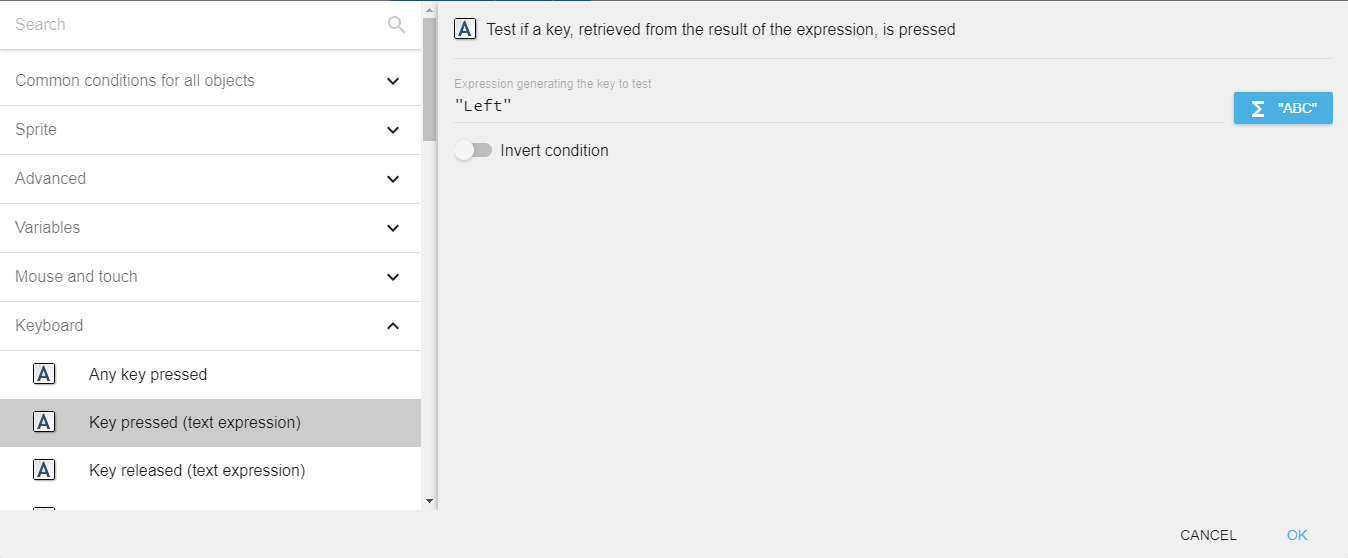
Key released
The Key released condition is true on the frame when a held key is released. It is commonly paired with Key just pressed to detect a complete press-and-release gesture (for example, charging a shot while a key is held, then firing when it is released).
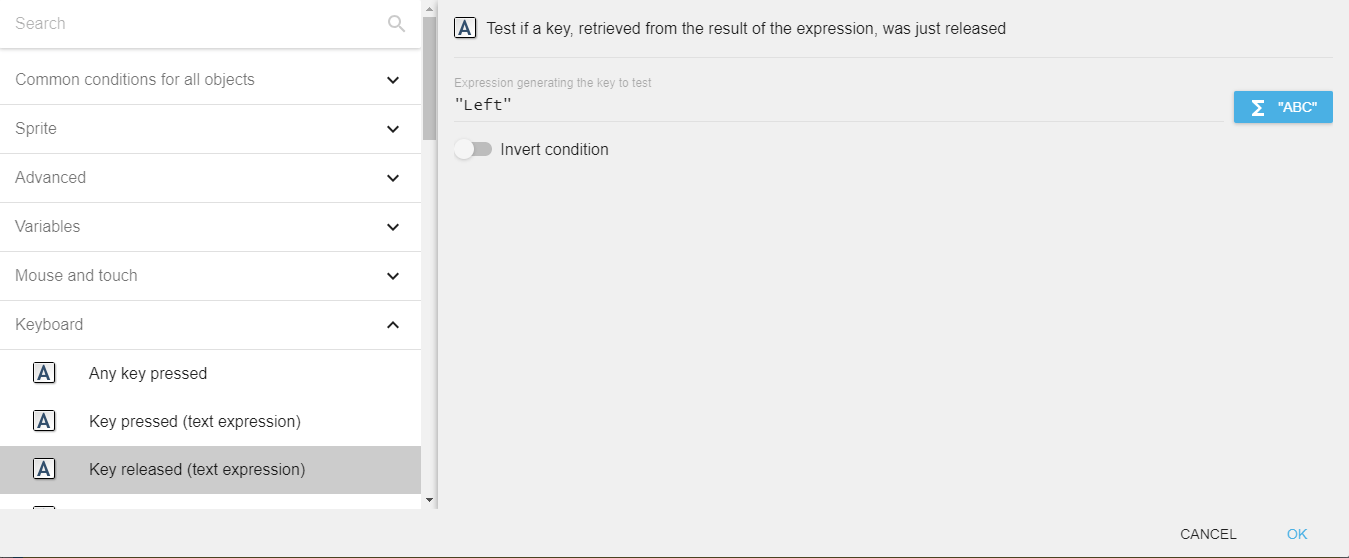
Any key pressed / Any key released
These conditions are true whenever any key on the keyboard is pressed or released. They are useful for "Press any key to continue" screens or to detect when the player is interacting with the keyboard at all.
Last pressed key
The LastPressedKey expression returns the name of the latest key pressed on the keyboard, as a string (for example "Left", "Space" or "a"). This is convenient to display the name of the key used for an action, or to let the player rebind controls by capturing whichever key they press next.
Reference
All actions, conditions and expressions are listed in the keyboard reference page.